How to record voice on a Mac with OhRec
Record your microphone and your Mac’s system audio with OhRec. Allow Microphone and Screen Recording, then save the file on this computer.
On a Mac, “record voice” usually means one of two things: your microphone, or the sound the computer itself is playing — a call, a video, or system alerts. OhRec can capture both. Files stay on this Mac. There is no account and nothing is uploaded.
Allow OhRec in System Settings
macOS will not pass audio until you grant permission. Open System Settings → Privacy & Security. Turn on Microphone for OhRec (or your browser, if you use the web recorder). For screen capture and system audio, also allow Screen Recording. If you just flipped a switch, quit OhRec and open it again so the permission sticks.
Record your voice (microphone)
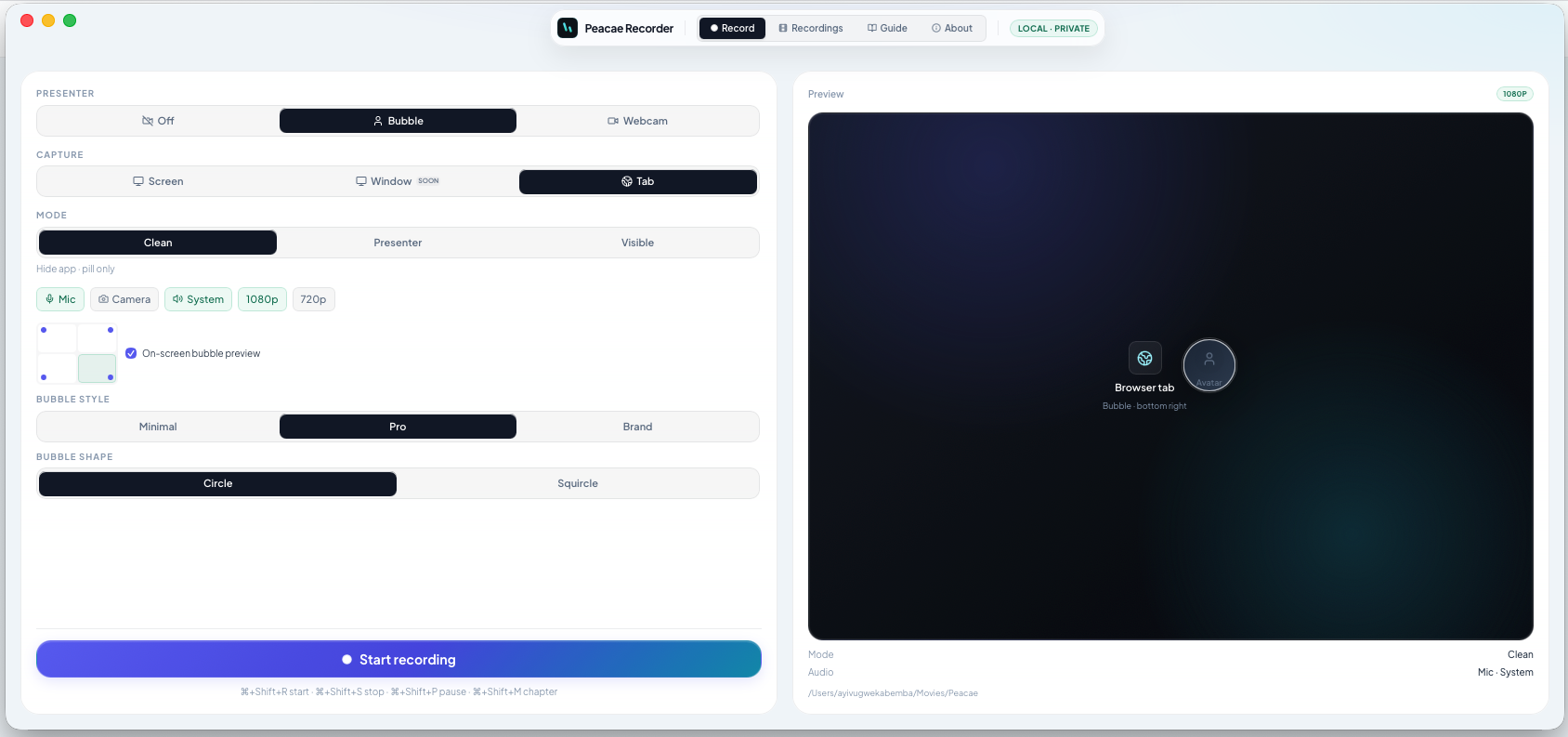
Use this when you want a voiceover, a spoken walkthrough, or yourself on camera. In the desktop app, pick Screen Only, Screen + Webcam, or Webcam Only, then set Microphone to On. In the web recorder, turn Mic on before you start. Speak a sentence in the preview if you want to confirm the level. Headphones help if you are also capturing system sound, so the speakers do not loop back into the mic.
Record the Mac’s own sound (system audio)
Use this when the “voice” is the computer — a tutorial playing on screen, a meeting you need to keep locally, or app audio. In the desktop app, choose Screen + Audio, or turn System audio on for a screen mode. That captures what the Mac is playing, not only your mic. The web recorder can include tab or window audio when the browser offers it; for reliable full-Mac sound, the desktop app is the better path.
Record both at once
Turn Microphone and System audio on together when you want to narrate over what the Mac is playing. Keep the Mac volume reasonable and wear headphones so your mic does not pick up the speakers. Start the clip, speak, then stop. The original file is saved locally — Movies/Peacae on most Macs, or the folder you chose in settings.
If you hear silence
- Confirm Microphone and Screen Recording are on for OhRec in Privacy & Security, then relaunch the app.
- Check that Microphone or System audio is actually On in the OhRec setup panel.
- On the web, use a Chromium browser and pick the tab or window that is playing sound.
- Mute other apps if you only want one source, or use headphones to avoid echo.
- After you finish, open Recordings — the file is on this computer, not in iCloud unless you put the folder there.
The OhRec mark: a screen, and record
The OhRec mark is a landscape frame with a glowing record disc. The glow is a live lens — the camera is on.

How to record your screen privately in the browser
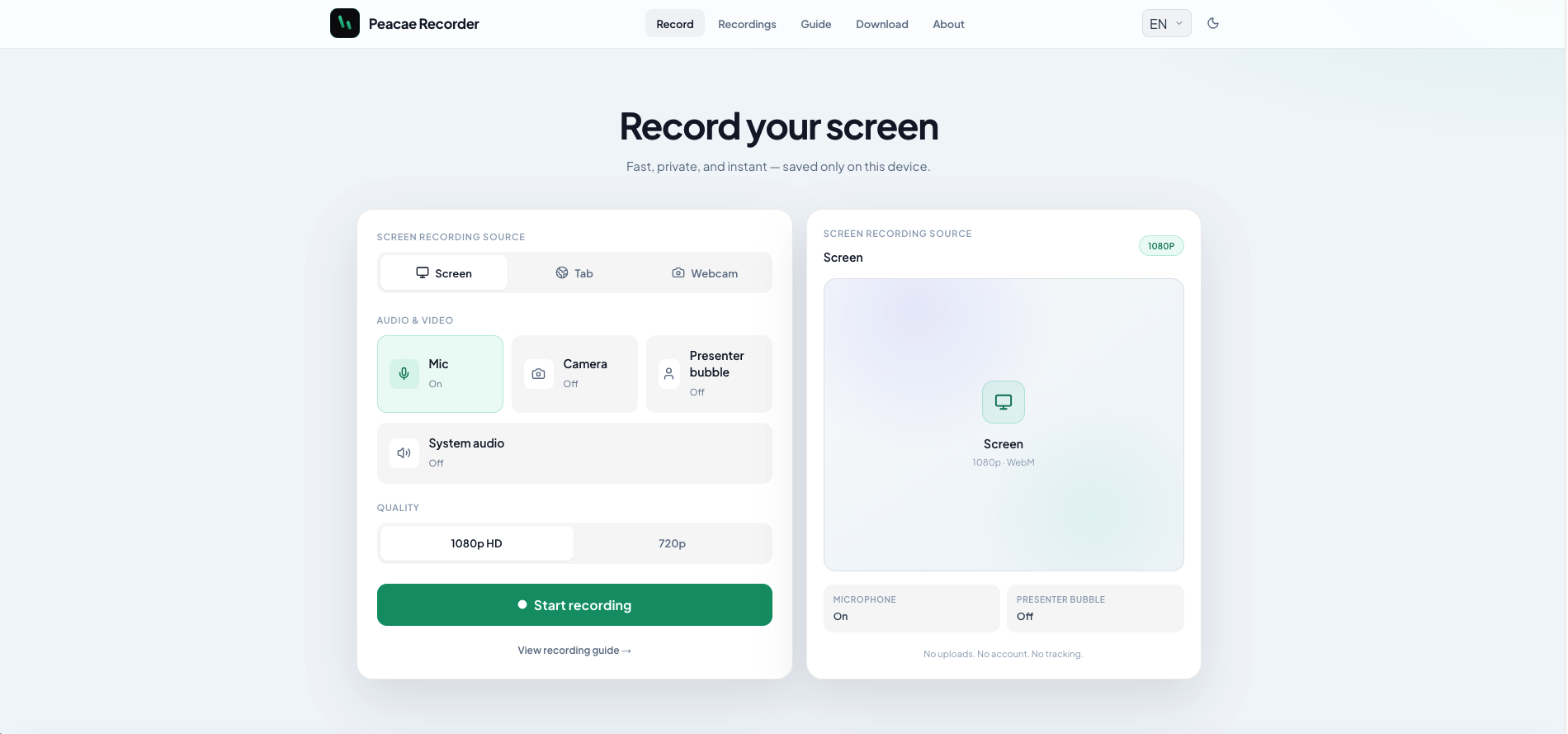
A quick walkthrough of the web recorder setup: sources, audio, quality, and what stays on your device.
Presenter bubble styles and shapes explained
Style your on-screen presenter bubble before you record — position, preview, theme, and shape.